Most contractors pay $30 to $100 every month just to keep their website online. Hosting, maintenance, security updates, "website care plans." It adds up to hundreds or thousands of dollars a year for a site that mostly just sits there.
Here is what the web companies don't tell you: your website is just a folder of files, and Cloudflare, one of the biggest internet companies in the world, will host those files for $0. Not a free trial. Actually free, forever, on the same network that carries a huge chunk of the internet.
This guide walks you through the whole thing with screenshots. If you can follow a recipe, you can do this.
Why This Works (and Why Nobody Told You)
Ten years ago, WordPress was the right choice for almost everyone. Nobody knew how to code, and WordPress let anyone build and edit a website. But that convenience came with a trade: WordPress sites are slow, they need constant plugin and security updates, they can get hacked, and they need paid hosting plus somebody to babysit all of it. That's the monthly bill.
Now ask yourself one question: when did you last change your website? For most contractors the honest answer is "maybe once last year." You are paying every month for easy editing you almost never use, while eating every one of the downsides.
A plain HTML website flips the trade. It loads instantly, there is nothing to update, nothing to hack, and Cloudflare hosts it for free. The old catch was that you needed a coder to edit HTML. AI killed that catch. Today you can tell an AI tool "change my phone number" and it does it. We'll cover that at the end of the guide.
Want to skip the whole guide?
For a limited time we'll do all of this for you: convert your WordPress site to HTML, put it on Cloudflare, and connect your domain. One flat $300, one time. After that your website costs you nothing to keep online.
Have Us Do It For $300 →Step 1: Create a Free Cloudflare Account
Go to dash.cloudflare.com/sign-up and create an account. All you need is an email address and a password. No credit card. The free plan is not a trial; it is a real plan that Cloudflare offers permanently, and it is more than enough for a contractor website.
If you're wondering whether "free" means "sketchy" here: Cloudflare is a publicly traded company that provides the security and delivery layer for roughly one fifth of all websites on the internet. Hosting your site costs them practically nothing, and they offer it free because some businesses eventually grow into paid products. A local contractor site never will, and that's fine with them.
Step 2: Turn Your WordPress Site Into Plain HTML
This is the step where your website gets its "snapshot" taken. The snapshot looks exactly like your current site, but it is frozen into plain files, no WordPress running behind it.
If your site is on WordPress, the easiest tool is a free plugin called Simply Static:
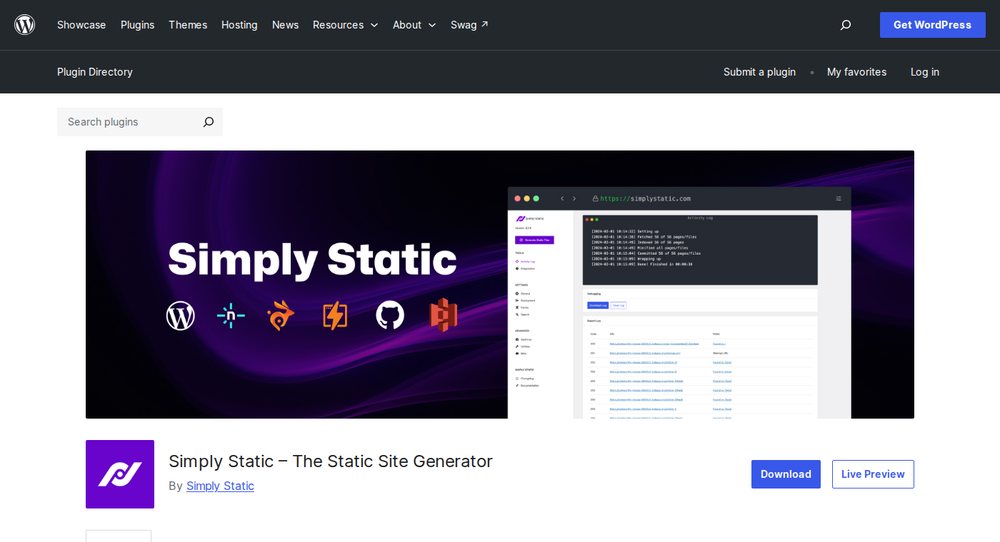
- Log in to your WordPress admin (usually yourdomain.com/wp-admin).
- Go to Plugins → Add New and search for "Simply Static". Install and activate it.
- In the left menu, open Simply Static → Generate and click Generate Static Files.
- When it finishes, download the ZIP file it created. That ZIP is your entire website.
Can't get into your WordPress admin? That happens more often than you'd think, and it is usually a sign your web company holds the keys to a site you paid for. You have two options: ask them for admin access (it's your site), or have us handle the whole conversion, which does not require their cooperation.
Step 3: Upload Your Site to Cloudflare
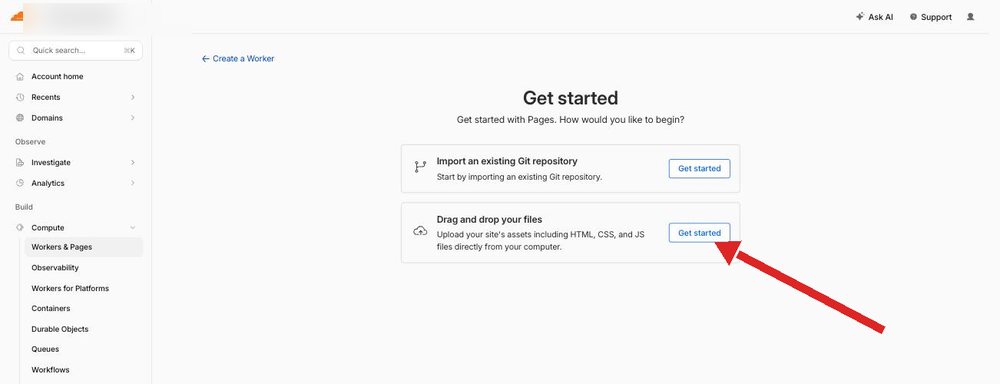
Log in to Cloudflare, and in the left menu click Compute → Workers & Pages, then the blue Create application button. Choose the Pages option, and on the "Get started" screen pick Drag and drop your files:
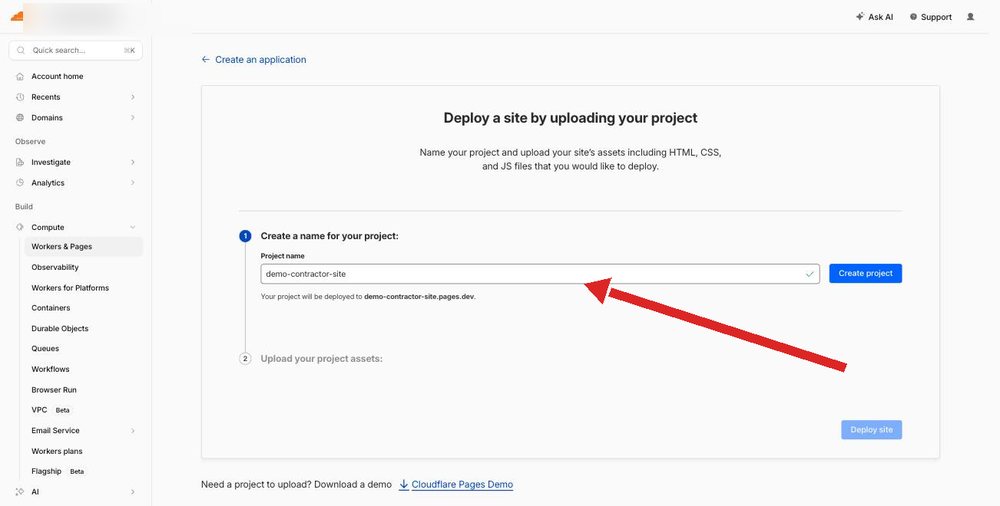
Give your project a name. Use your business name with dashes, like smith-contracting. Cloudflare will also give you a free temporary web address based on this name:
Now the upload box appears. Drag the ZIP file you downloaded in Step 2 straight into it (a folder works too):
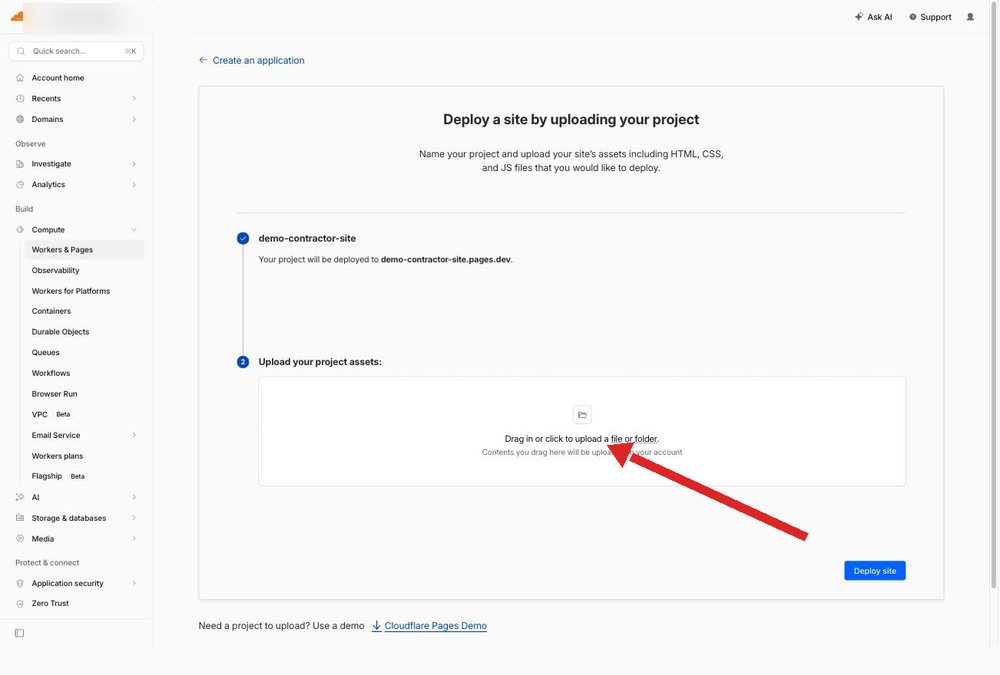
When the upload finishes you'll see a green confirmation. Click Deploy site:
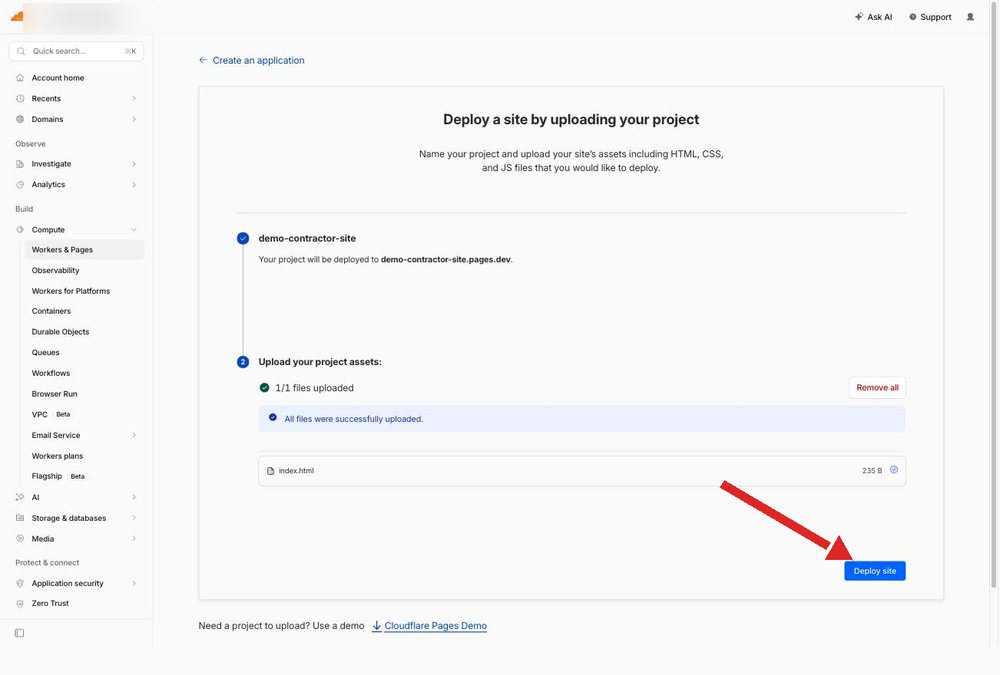
That's it. Your website is now live on Cloudflare's network, hosted free:
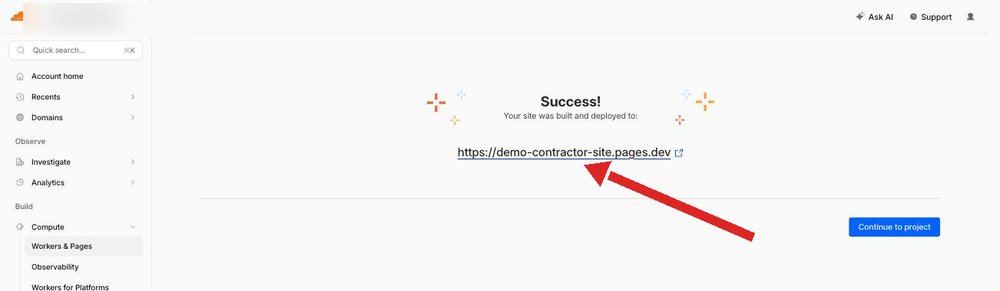
Click the link and look around your site. Every page should look identical to your old one, just faster. Note: a brand new link can take a few minutes to start working, so if you see an error at first, give it ten minutes and refresh.
Step 4: Connect Your Domain Name
Right now your site lives at the temporary .pages.dev address. The last step is pointing your real domain (yourbusiness.com) at it.
Open your new project in Cloudflare and click the Custom domains tab, then Set up a custom domain. Type your domain and follow the prompts:
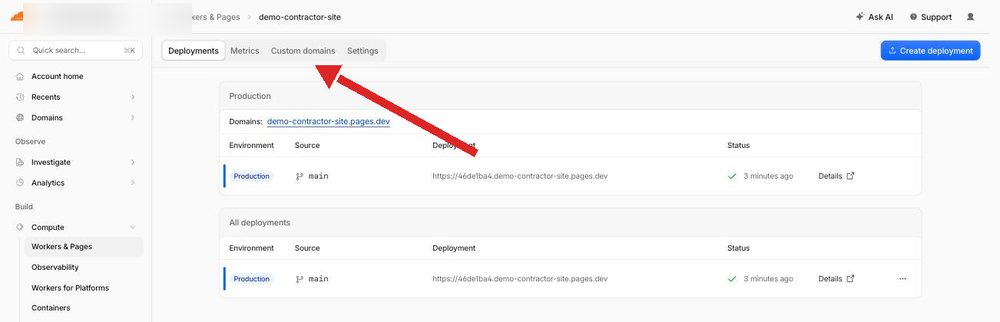
Cloudflare will show you exactly what to change at the company where you bought your domain (GoDaddy, Namecheap, Google Domains, and so on). Usually it is one DNS record, and Cloudflare spells out the exact values to copy and paste. This is honestly the fiddliest step of the whole process, because every domain company's screens look a little different. Go slow, copy carefully, and know that nothing breaks while you're doing it; your old site stays up until the switch happens.
Step 5: Fix Your Contact Form, Then Cancel Your Old Hosting
One honest warning. The snapshot from Step 2 froze your site, and that includes your contact form. The form will still look normal, but it needs a small helper service to actually deliver messages to your inbox, because there is no WordPress behind it anymore. Free options like Web3Forms or Formspree do exactly this: you swap one line in the form and messages come to your email again.
This is the one genuinely technical step, and it is also the one people most often get wrong quietly, which means missed leads. Test it: submit your own form and confirm the message reaches your inbox.
Once your domain points to Cloudflare and your form works, run the site for a week. Then, and only then, cancel your old hosting plan. That monthly bill is done forever.
How Do I Edit My Site Without WordPress?
This is the question everyone asks, and it is where AI changed everything. Your website is now a folder of files you own. When you want to change something, you open a free AI tool (Claude, ChatGPT), give it the file, and say what you want in plain English:
- "Change the phone number on this page to (208) 555-0147."
- "Add 'Now serving Post Falls and Hayden' under the heading."
- "Replace the photo on the services page with deck-photo-2.jpg."
It hands back the updated file, and you drag the folder into Cloudflare again exactly like Step 3. The whole edit takes a few minutes. For a contractor updating a site a few times a year, this is genuinely easier than fighting a WordPress page builder, and there are no plugins to update or logins to lose.
Rather have it done for you?
We'll convert your WordPress site to HTML, host it on Cloudflare, connect your domain, and make sure your contact form delivers. One flat $300. After that, keeping your website online costs you nothing, and if you ever want hands-off edits, our maintenance plan covers those too.
Book Your $300 Conversion →Common Questions
Is this really free forever, or does the bill show up later?
The Cloudflare free plan has no time limit and no credit card requirement. Their paid plans exist for big applications with heavy traffic and server-side code. A contractor website with photos, service pages, and a contact form does not come close to the free limits.
Will my site look different after the conversion?
No. The static snapshot is pixel-for-pixel your current site. It usually loads noticeably faster, because there is no WordPress database churning behind every page view.
What about my blog, reviews widget, or online booking?
Plain content converts perfectly. Anything interactive (booking calendars, live review feeds, member logins) needs a case-by-case look. Most embed widgets, like a Google reviews embed or a Calendly booking window, keep working fine because they load from the widget company, not from WordPress. If you're unsure about a specific feature, ask us and we'll tell you straight whether it survives the conversion.
What happens to my SEO and Google rankings?
Your pages, content, and web addresses stay the same, so your rankings carry over. Speed is a ranking factor, and static sites are fast, so if anything this tends to help. The one thing to watch is keeping the same page addresses during conversion, which Simply Static does by default.
One thing I want to be clear about: this guide is about not paying for hosting. If SEO and advertising are important to your business, I still recommend paying professionals to handle them. Ranking on Google and running profitable ads are ongoing, competitive work, and that is where a good marketing partner actually earns their fee. Free hosting just means more of your budget goes toward the work that brings in jobs instead of a bill for keeping the lights on.
Do I still need to renew my domain name?
Yes. Your domain (yourbusiness.com) is a separate thing you rent from a registrar for roughly $10 to $20 a year. That is the one cost that never goes away, no matter where your site is hosted.